

If you’ve experimented with Claude Code, Codex, Copilot, and the like over the past two years, or even work with them on a daily basis, you’ve surely noticed a few quirks of these AI agents: Searching for and downloading content from the internet on their own, attempting to run opaque ad-hoc code in Python or Bash on your system, or creating new files in your project that you didn’t even notice at first. In addition, especially in recent months, there have been reports of AI agents launching targeted attacks on other servers from within their environments, such as in this incident involving OpenAI and Hugging Face.
Whether we’re talking about anecdotes, the accidental sharing of API tokens or company and customer data with AI agents, or LLMs acting on their own in the depths of the internet, all these cases share two vulnerabilities:
- AI agents often have extensive permissions in the environments where they run if those permissions are not precisely restricted from the start; ad hoc scripts and stored files are often disorganized and difficult to classify at first glance.
- Especially when using frontier models from Anthropic, OpenAI, xAI, and others, sensitive data can be leaked and used for further training of the models – often, an individual or organization-wide opt-out is necessary to prevent this.
In this article, we’ll therefore take a look at how you can use sbx, OpenCode, and a privacy-compliant AI solution like NWS Managed AI Models to operate secure and sovereign AI agents that can significantly mitigate these vulnerabilities. The result is an isolated sandbox with controlled network access, non-extractable secrets, and a GDPR-compliant LLM operated in a German, ISO 27001-certified data center.
The NWS Newsletter
New products, fresh features and dates for events and talks: everything important from the NWS world, delivered compactly to your inbox.
sbx and OpenCode at a Glance
sbx is a CLI project from Docker designed to provide AI agents with dedicated sandboxes in the form of isolated micro-VMs. It is not open source, but it can be used free of charge for private and commercial purposes and is available for installation on GitHub and through many package managers. Using sbx, we will create a controlled environment for our AI agents in this article, where they can operate freely.
OpenCode is an open-source AI coding agent – sometimes referred to as an “agent harness” – similar to Claude Code or Gemini CLI. The project is actively being developed on GitHub and allows your AI agents to connect to a wide variety of free and paid LLMs. In this article, we’ll use OpenCode to run our AI agents.
Preparations and Installation
We need to prepare the following items before we can start experimenting with sbx and OpenCode:
- an account with Docker (using sbx requires a logged-in Docker account; the service itself is free)
- Both CLIs must be installed on our system. You can find installation instructions for many environments here:
- a directory where we can work with our AI agents, for example
secure-sandbox/ - [Optional] An API key for using the NWS Managed AI Models, which we’ll be using in this article (alternatively, OpenCode also offers free models, or you can connect to a provider you already use)
Configuring NWS Managed AI Models
If you want to use NWS’s hosted AI models in OpenCode, you must also create a file named ` opencode.json ` in your working directory:
{
  "$schema": "https://opencode.ai/config.json",
  "provider": {
    "nws-ai": {
      "npm": "@ai-sdk/openai-compatible",
      "name": "NWS Managed AI",
      "options": {
        "baseURL": "https://api.ai.nws.netways.de/qwen/v1",
        "apiKey": "{env:NWS_AI_API_KEY}"
      },
      "models": {
        "qwen3.8-27B": {
          "name": "Qwen3.8-27B"
        }
      }
    }
  }
}With this configuration, you can use the models we host in OpenCode – NWS Managed AI Models are not yet available as an official provider in OpenCode, but we’re working on it.
Initializing sbx
Before we start our first sandbox with sbx, it’s also a good idea to initialize the Global Network Policy for all sandboxes on our system:
sbx policy init balancedThe Balanced profile allows sandboxes to access the APIs of popular LLM providers and other sites that are useful for developing with AI agents (e.g., GitHub).
Defining Secrets for Sandboxes
The environment variable ` NWS_AI_API_KEY` mentioned in the configuration – from which OpenCode later retrieves the API key for communicating with the hosted LLMs – can then be defined directly in sbx as a custom secret:
sbx secret set-custom \
  --env NWS_AI_API_KEY \
  --host api.ai.nws.netways.de \
  --value <API_KEY>

sbx secret lsThe list of all secrets in sbx should look something like this afterward:
CUSTOM SECRETS
SCOPE      TARGETS                 ENV              PLACEHOLDER               SECRET
(global) api.ai.nws.netways.de NWS_AI_API_KEY sbx-cs-zn6uAnmceeAMBbIG uNr2Qv******...******k0ihFor some other LLM providers, there are predefined secret formats that you can use instead of NWS via sbx secret set instead of sbx secret set-custom.
The First Launch
Once all preparations are complete, we can launch our secure and sovereign sandbox for our AI agent for the first time:
sbx run opencode --detached

── RESOLVE SETUP
   resolving configuration…
     sandbox    opencode-secure-sandbox
     agent      opencode
     workspace  /Users/daniel/repositories/private/secure-sandbox (rw)
     skills     /Users/daniel/Library/Application Support/com.docker.sandboxes/sandboxes/agent-skills → /home/agent/.config/opencode/skills · 0 folders · (ro)
     image      docker/sandbox-templates:opencode-docker
     cpu        10
     memory     8 GiB
   ✓ configuration resolved
── PREPARE IMAGE
   → pull docker/sandbox-templates:opencode-docker
   ✓ image ready
Warning: no OpenAI credentials available. opencode will start logged-out.
To set credentials on the host before creating sandboxes, run one of:
  sbx secret set openai --oauth   # Sign in with ChatGPT (recommended)
  sbx secret set openai           # OpenAI API key (reads from stdin)
── CREATE SANDBOX
   ✓ Created sandbox opencode-secure-sandbox

Starting opencode agent in sandbox 'opencode-secure-sandbox'...
Workspace: /Users/daniel/repositories/private/secure-sandbox
c0431097-7889-47d4-90a2-debc457aa9b0
The first run takes a moment because sbx first has to download the environment itself.
This contains OpenCode, as specified by our command. The command’s output also lists the resources allocated to the sandbox, the skills and directories shared with it, and the sandbox’s name and ID.
We can use this name (or ID) to first check whether the secret we defined has been propagated correctly within the sandbox:
sbx exec -it opencode-secure-sandbox env | grep NWS_AI_API_KEY

NWS_AI_API_KEY=sbx-cs-zn6uAnmceeAMBbIG
The environment variable exists within our sandbox and corresponds to the placeholder defined for the secret (see above); therefore, our AI agent never works with the actual API key.
Now that all the requirements are in place, we can start an interactive session in OpenCode within the sandbox and take a look around:
sbx run --name opencode-secure-sandboxThe OpenCode terminal opens. Here, we enter /models, confirm by pressing Enter, then search for NWS and select the Qwen3.8-27Bmodel from NWS Managed AI -which we defined in our opencode.json – from the results displayed.
After that, we can send our first request to the LLM – in theory; if you send an initial message to Qwen, you won’t receive a response, and the following error message will appear:
Forbidden: Blocked by network policy: domain api.ai.nws.netways.de:443
  detail: no matching allow rule — blocked by default deny policy
But why?
Policies in sbx
Our sandbox does what it’s supposed to: it isolates our AI agent from the rest of our environment and, almost more importantly, from external environments (e.g., the Internet). The Balanced profile set for our sandboxes during the sbx setup does not include the API endpoint for NWS Managed AI Models – so we need to add it in a second terminal session:
sbx policy allow network api.ai.nws.netways.deThe configured policy applies to all sandboxes, including those already running. You can use the ` --sandbox ` parameter to restrict policies to specific sandboxes. Send another message to the LLM in your running OpenCode sandbox – this time, you should receive a response.
You can make policies even more granular, for example, by allowing only specific HTTP methods or request paths. Wildcards are also supported here.
When it comes to accessing files on your system, the sandbox’s isolation works a little differently: The working directory from which you created the sandbox is automatically mounted as a writable directory within your sandbox and becomes the working directory there as well. In addition, you can specify other paths that will also be mounted. As an example, let’s look at the following command for creating a new sandbox:
sbx create opencode \
  ./demo-app \
  ./demo-design:ro \
./demo-app/package-lock.json:roThis command…
- …creates a new sandbox for OpenCode as the AI agent being used
- …mounts the directory
demo-app/as a writable working directory - …mounts the directory
demo-design/as a read-only directory - …mounts the file
package-lock.jsonin the writable working directory as a read-only file
This means we can grant our AI agents fine-grained access to exactly the directories and files they need for their work – but only when the sandbox is being created
An Overview of the sbx Architecture
The network restrictions in the sandbox and the use of defined secrets, in particular, can catch you off guard at first. How can the sandbox communicate with NWS Managed AI Models if it’s clear that it can’t access the actual API key? And how does the restriction of allowed network communication through defined policies work?
The answer to both questions lies in the architecture of sbx on our system:
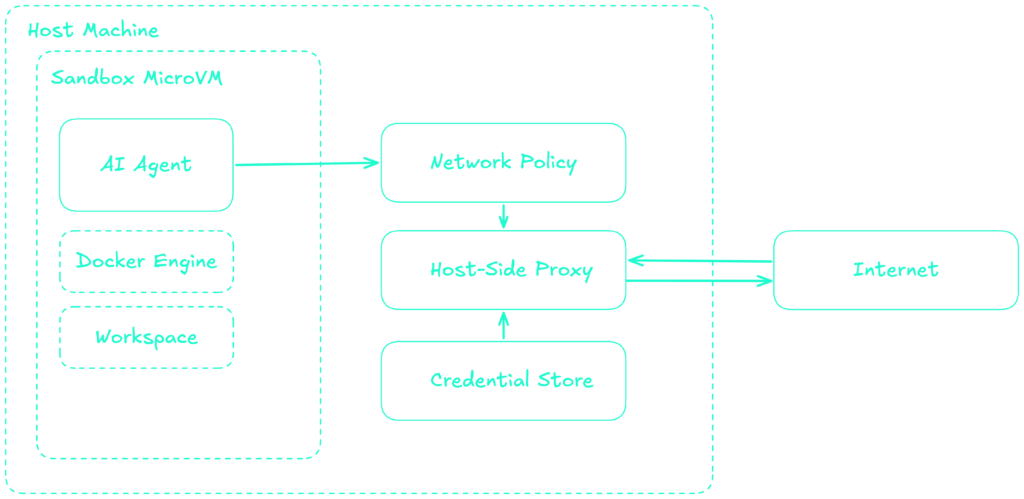
Each defined sandbox on our system corresponds to an isolated MicroVM – files, services, and other artifacts created or executed within it are persistent, even across reboots of the respective sandbox. All network traffic from the sandbox is checked against the defined network policies upon exiting the isolated environment and then forwarded through a proxy on our actual system.
Thos proxy also injects our API key for NWS Managed AI Models from the credential store on our system into the request. Up to this point, the request contained only the placeholder available in the sandbox.
This architecture allows sbx to maintain a good balance between security and flexibility: network requests can be allowed on a granular basis, and secrets are properly managed at the system level and can be made available to individual sandboxes as needed.
The sandboxes themselves cannot extend their permissions on their own – the decision regarding whether access to services over the network or to secrets from within a sandbox is permitted is made outside the respective sandbox.
Fun in the Sandbox with Safe and Sovereign AI Agents
For the purposes of this article, the features of sbx and OpenCode demonstrated so far are certainly sufficient, but we’re still far from reaching the limits of what’s possible: For example, the sandboxes provided by Docker all include a fully functional Docker environment – so you can provision entire test environments within your sandboxes, giving your AI agents even more tools to develop autonomously.
Once you’ve identified the specific configurations you use when working with sbx sandboxes, you can also specify them in what are called “kits” and make them available to your colleagues – this ensures that your sandboxes remain declarative, reproducible, and that the entire team works with the same configuration, the same restrictions, and the same security measures. And if you’re running several different sandboxes in parallel or switching back and forth between them, you might find sbx’s Terminal User Interface (TUI) useful.
sbx and OpenCode certainly do not solve all the problems currently observed in dealing with AI agents, and no one can know for sure what measures we will resort to in 1–2 years to secure AI-assisted software development. However, the concept of isolated MicroVMs with configurable permissions for secrets, network traffic, and access to file systems – combined with sovereign, privacy-compliant LLMs such as the NWS Managed AI Models – is definitely a step in the right direction, and we’ve really enjoyed experimenting with sbx internally. We’re curious to hear what you think of it!
If you want to delete your existing sandbox after finishing this article, you can do so using one of the following commands:
# Liste alle Sandboxes
sbx ls

# Lösche eine Sandbox
sbx rm <name>

# Setze sbx komplett zurück
sbx reset
0 Comments