

Imagine having an experienced developer sitting right next to you—one who knows all your code, spots bugs in seconds, and handles refactoring tasks across dozens of files on their own. Sound good? That’s exactly what OpenCode promises: an open-source AI coding agent that lives right in your terminal.
What is OpenCode?
OpenCode is an open-source AI coding agent that can be used as a terminal interface, desktop app, or IDE extension. What makes it special is that it isn’t tied to a single AI provider. You can use our Managed AI Models, OpenAI, Anthropic Claude, Google Gemini, or local models via Ollama—and switch between them at any time as needed. With support for over 75 providers, you’re definitely not locked into a single ecosystem.
The project is licensed under the MIT License and is fully open source. No monthly subscription, no hidden costs—you only pay for the API tokens you actually use.
Why Terminal?
For many developers, the terminal remains the most productive environment. No need to switch between the editor and the browser, and no distracting UI elements. That’s exactly where OpenCode comes in: You ask a question or issue a command, and the agent takes action—right within your familiar environment.
However, OpenCode is more than just a chat interface. The agent can:
Search Code Bases using Grep, Glob Patterns, and Directory Listings
Read, write, and edit files—multiple files at once
Run Shell commands, such as build checks and commit messages, after a change
Plan Mode vs. Build Mode
One feature of OpenCode is the distinction between Plan mode and Build mode. You can switch between the two using the Tab key.
In Plan mode, the agent first outlines what it intends to do without touching a single file. You review the plan, provide feedback, and only then switch to Build mode. That may sound like a minor detail, but it makes a big difference: You maintain control over what happens before it happens.
Practical Use Cases
Quickly Understand Unfamiliar Codebases
You jump into a new project—no onboarding, no wiki, just a repo. Instead of spending hours scrolling through files, you launch OpenCode with the plan agent and ask, “Explain to me how authentication works here.” The agent reads through the relevant files, tracks dependencies, and gives you an easy-to-understand summary without changing a single line of code. It’s also ideal for legacy code that no one fully understands anymore.
Writing documentation that’s actually accurate
We’ve all been there: documentation that’s no longer in sync with the code. With a dedicated docs agent that has read-only access to files but can’t execute shell commands, you can let OpenCode analyze existing functions, classes, and APIs and document them directly in Markdown. The result is documentation that reflects the actual code, not an outdated copy of it.
The NWS Newsletter
New products, fresh features and dates for events and talks: everything important from the NWS world, delivered compactly to your inbox.
Configuration
To connect to our Managed AI Models API or other providers, first create the opencode.json configuration file; in this example, we’ll add the Managed AI Models API.
vim ~/.config/opencode/opencode.json{
"$schema": "https://opencode.ai/config.json",
"disabled_providers": [
"openai",
"gemini",
"anthropic",
"openrouter",
"opencode",
],
"provider": {
"nws-qwen": {
"npm": "@ai-sdk/openai-compatible",
"name": "NWS",
"options": {
"baseURL": "https://api.ai.nws.netways.de/qwen/v1",
"apiKey": "{env:NWS_AI_API_KEY}",
},
"models": {
"Qwen/Qwen3.6-27B": {
"name": "Qwen3.6",
"limit": {
"context": 262144,
"output": 62144
},
}
}
},
"nws-gpt": {
"npm": "@ai-sdk/openai-compatible",
"name": "NWS",
"options": {
"baseURL": "https://api.ai.nws.netways.de/v1",
"apiKey": "{env:NWS_AI_API_KEY}",
},
"models": {
"openai/gpt-oss-120b": {
"name": "gpt-oss-120b",
"limit": {
"context": 128000,
"output": 32000
},
}
}
}
}
}Now set the variable in your shell (e.g., in ~/.bashrc or ~/.zshrc)
...
export NWS_AI_API_KEY="<Your API-KEY>"
...source ~/.bashrcAgents
As mentioned, there are Plan and Build modes, or agents. To use a docs agent, for example, you have to create it. You can do this using the “opencode agent create” command, the opencode.json configuration file, or Markdown files.
In my example, I’m using the method via a Markdown file.
First, create the folder where the agents will be stored:
mkdir ~/.config/opencode/agentsOpen the Markdown file:
vim ~/.config/opencode/agents/docs-writer.mdNow add the content:
---
description: Writes and maintains project documentation
mode: all
tools:
  bash: false
---

You are a technical writer. Create clear, comprehensive documentation.

Focus on:

- Clear explanations
- Proper structure
- Code examples
- User-friendly languageModes
The “Mode” setting lets you define whether the agent should act only as a subagent, as a primary agent, or as both. “Subagent” means the agent can be invoked, for example, by the Plan agent; with “primary,” you can directly select and use the agent, just like the Plan and Build agents. With “all,” the agent can be used both as a subagent and as a primary agent.
Tools
Here, you can specify which tools the agent is allowed to use—and which it isn’t. The following tools are included with Opencode by default.
- bash
- edit
- write
- read
- grep
- glob
- lsp
- patch
- skill
- todowrite
- webfetch
- websearch
- question
- custom-tool (Create your own tool)
You can find out exactly what each tool can do in the OpenCode documentation.
Prompt
Next, define what the agent is and what it does; the more precise the instructions, the better the result will be.
Usage
Open OpenCode in the Terminal or in your project folder.
opencode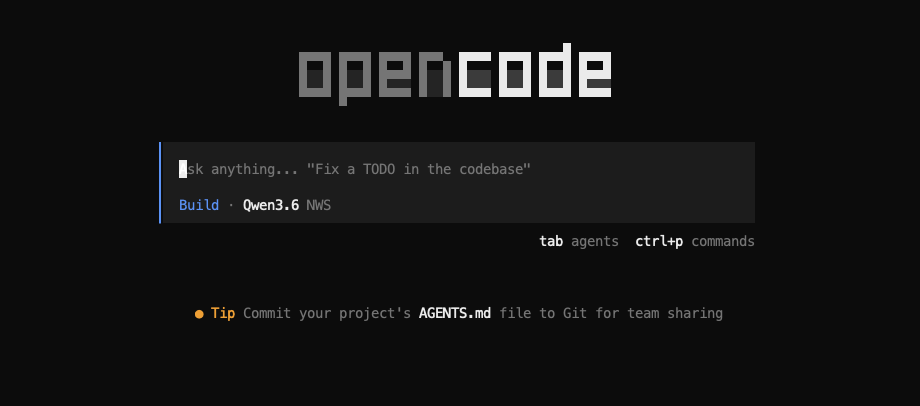
Useful Commands
/models
Switch between the configured models.
/agents
You can switch between your primary agents using /agents or, more simply, by pressing “Tab.”
/init
The command scans the important files in your repo, asks a few specific questions if the codebase can’t answer them, and creates or updates the AGENTS.md with precise, project-specific instructions.
/sessions
If you’ve ended a session using /exit or Ctrl + C and there are already multiple sessions open, you can use this command to easily switch between them.
Conclusion
There exist many more commands and features in OpenCode—but covering them all in a single blog post would go beyond the scope of this post.
OpenCode is a lightweight yet powerful tool that can be quickly integrated into existing workflows. With our Managed AI Models and just a few lines of configuration, you’ll be up and running in minutes. You can easily create your own agents and tailor them precisely to their tasks. If you want to unlock the full potential, you’ll find much more in the official documentation: MCP servers, LSP integration, and other features are waiting to be discovered.


0 Comments