

We are celebrating success with our new cloud environment – performance, stability, flexibility and low prices are impressing our customers. However, the multitude of functions can be overwhelming for some users when using it for the first time. However, we are happy to help shed light on this and show how easy it actually is.
To begin with, we need an NWS account. Here you simply enter an e-mail address and the desired password, as well as whether it is a business or standard account. A short time later, you will receive an e-mail validation link. Once the account has been confirmed, you can log in. A demo credit card is stored for the quick start, but it is advisable to enter the desired payment method (credit card/invoice/PayPal) via the account tile>”Edit payment method”.
Also via the account tile -> “Edit account” we can now enter our desired billing data, e-mail address for sending invoices etc. and validate our account via phone call or SMS.

Finally, clicking on “Start app” brings us to our goal – here we just follow the OpenStack button and confirm the unpopular clauses on terms and conditions and data protection – but what has to be done, has to be done.
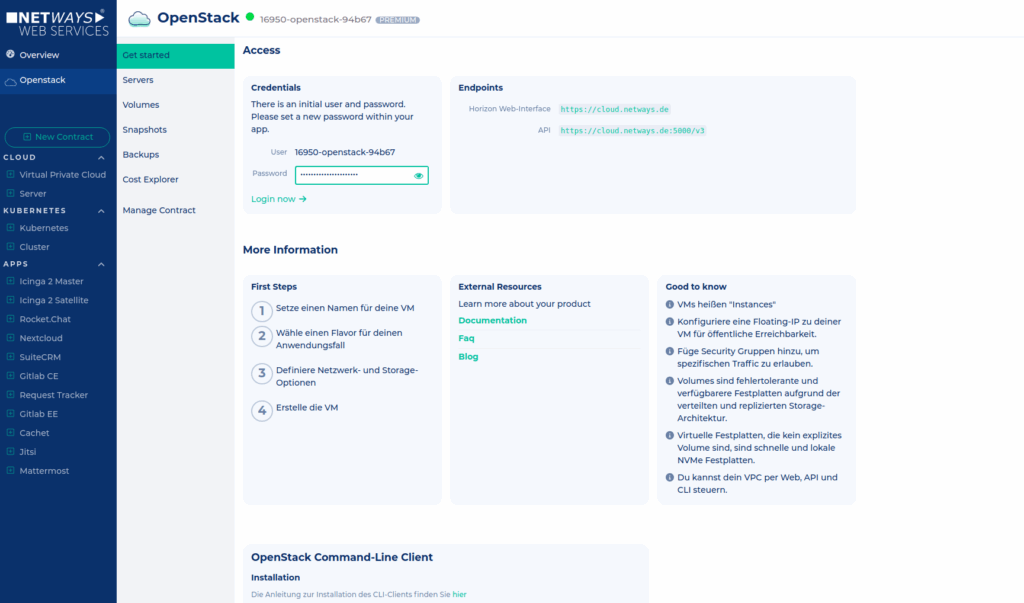
Our OpenStack now appears in our app overview. Just a click away behind the inconspicuous tile is all the important information you need to get started.
Since we have a new NWS frontend, you could use the “Servers” button to create a VM very easily in just one step. However, since this article is about OpenStack, we will continue in this way.
After clicking on the link to the web interface, the Cloud login window appears. The login details here differ from those that grant access to the NWS, but can also be found in the Cloud app details.
So let’s now insert the data we have spied.
That’s it – our cloud is ready and waiting for the first server to be created.
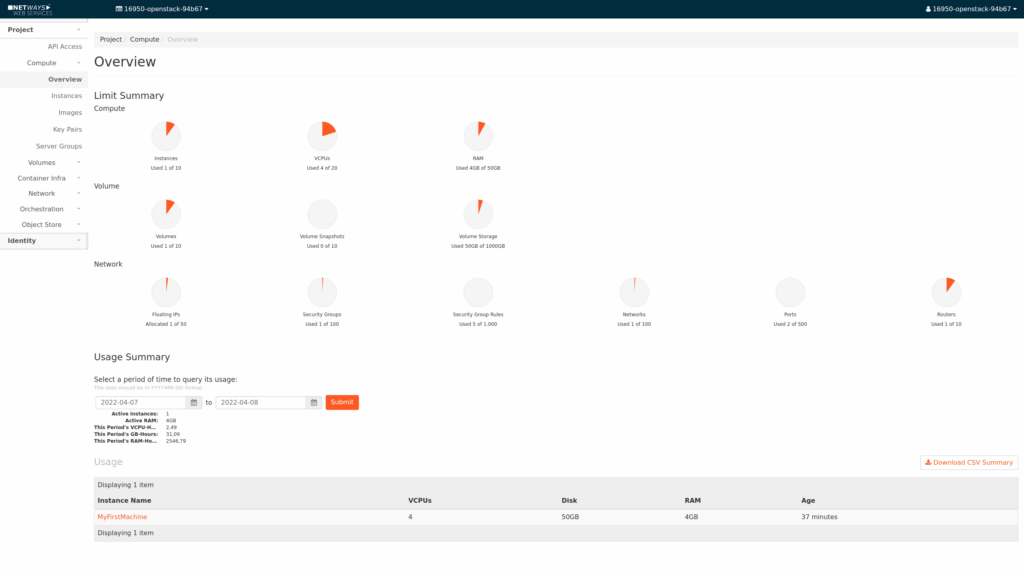
Start the first machine
Don’t worry – it’s almost just as easy.
Navigate to “Compute”->”Instances” and start a new instance in the top right-hand corner.
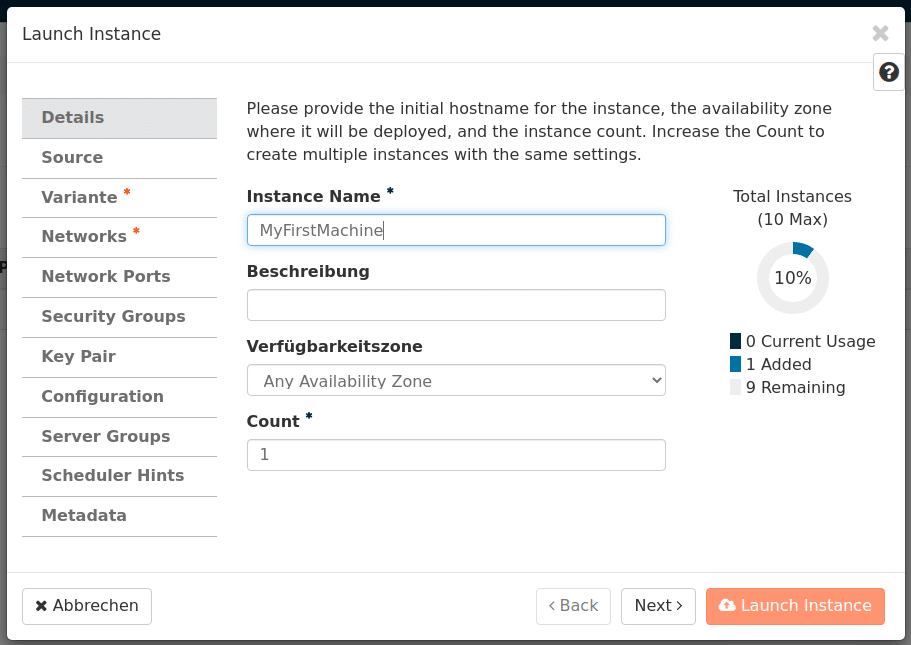
Now we work through the other tabs on the left-hand side and visit the “Source” item.
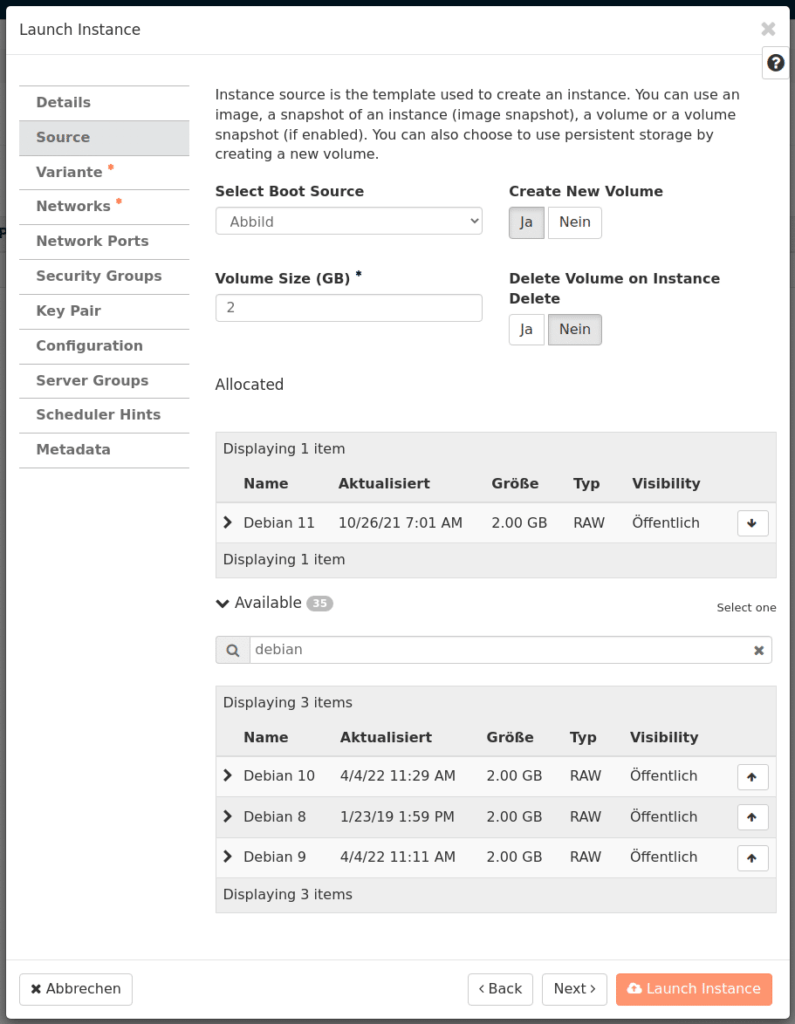
Here we select “Image” as the boot source and choose the desired operating system from the list below (the arrow on the far right for selection). Then there is still the question: “Create New Volume”?
If you click “Yes” here, you get a VM with a Ceph network storage system volume.
This is replicated three times across two locations. If the hypervisor dies, we restart the affected VMs on other hosts.
“No” would result in the VM to be created having its system data directly on an SSD on the hypervisor.
Although this is faster, it has the disadvantage that the data is stored completely on just one physical host (RAID 1). Furthermore, these VMs can only be restarted once the hypervisor has been fixed if the hypervisor fails.
Windows server enthusiasts may choose this option for performance reasons.
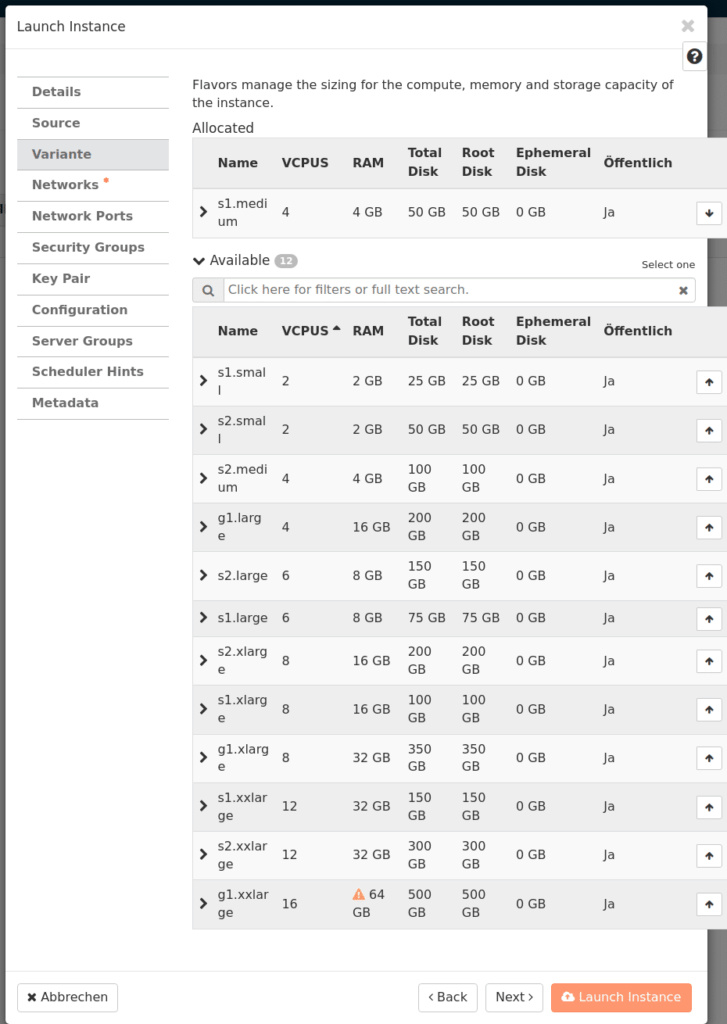
The Flavor menu item offers various presets for the desired machine sizes. Here you can select what you need. Is a desired flavor missing? Just send us a short e-mail and we’ll take care of it!
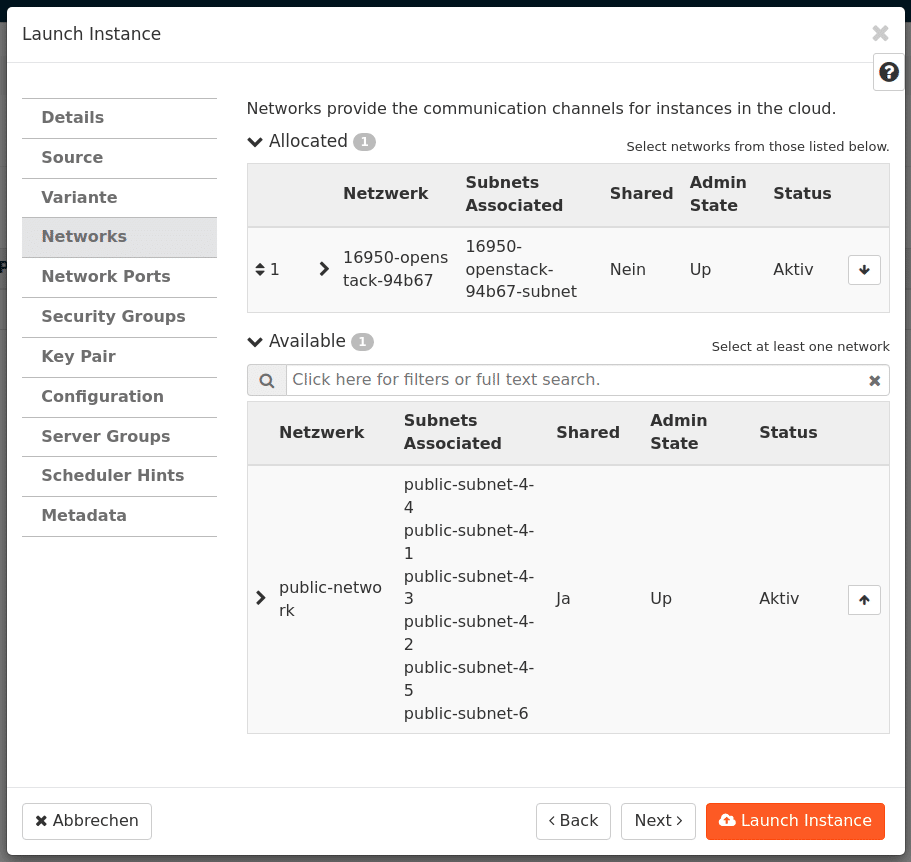
The next tab is all about networking, where our OpenStack network is selected, which is the same as our OpenStack project.
For the moment, we will ignore a few menu items and turn our attention to the Key Pair menu item.
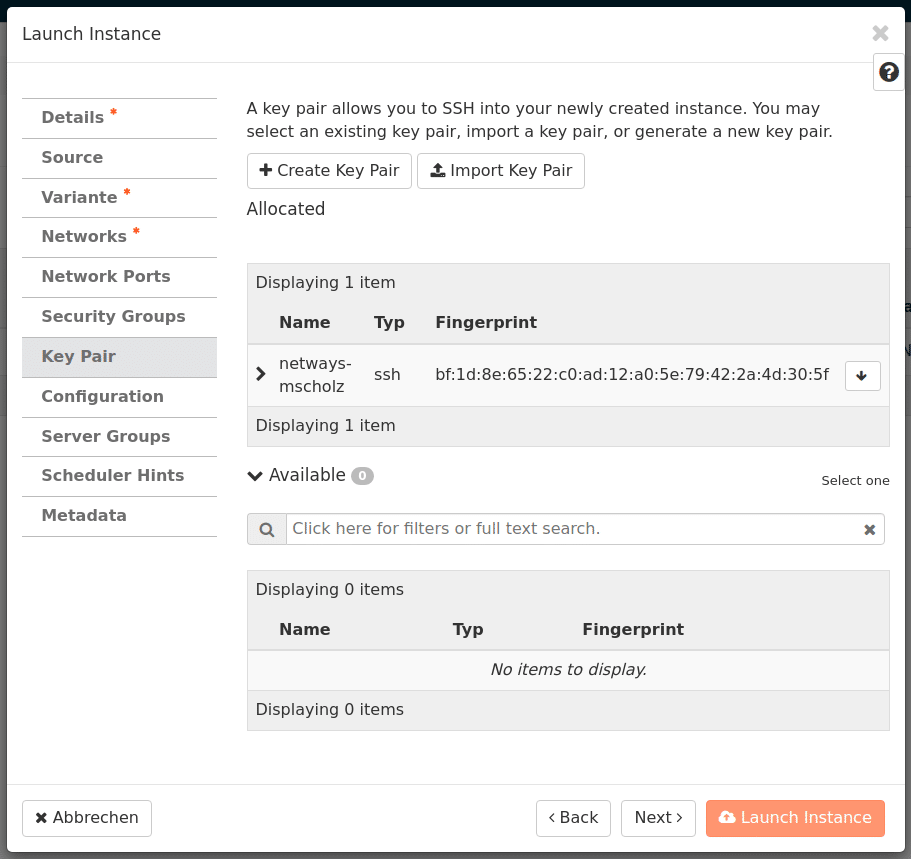
Using the “Import Key Pair” button, we import our SSH pubkey in its unabridged form and assign a name of our choice. This is also clicked “upwards” again.
Finally, the instance can be started – it is ready just a few seconds later.
However, 2 things still need to be done for the first use.
Assign floating IP
To do this, we click on the small arrow pointing downwards on “Associate Floating IP” to the right of the desired machine in the machine overview, obtain a new IP from the pool using “+” and assign it to the machine.
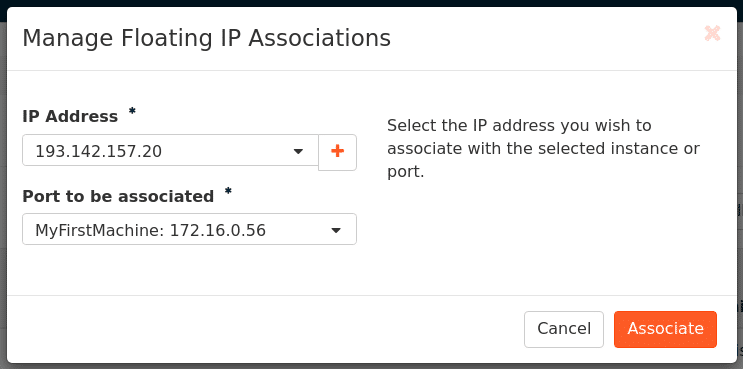
We can now see that the machine has an IP in the internal network, as well as the floating IP that has just been assigned – we will need this later to connect to the machine.
Edit security groups
Our cloud already has a firewall. Therefore, access via SSH or RDP does not yet work. However, this can also be done with just a few clicks.
In the main navigation of OpenStack, we visit Network->Security Groups. Here we “manage” the “rules” of our default security group via “Manage Rules” and add a new rule for SSH via “Add Rule” and enable access to all networks for the time being.
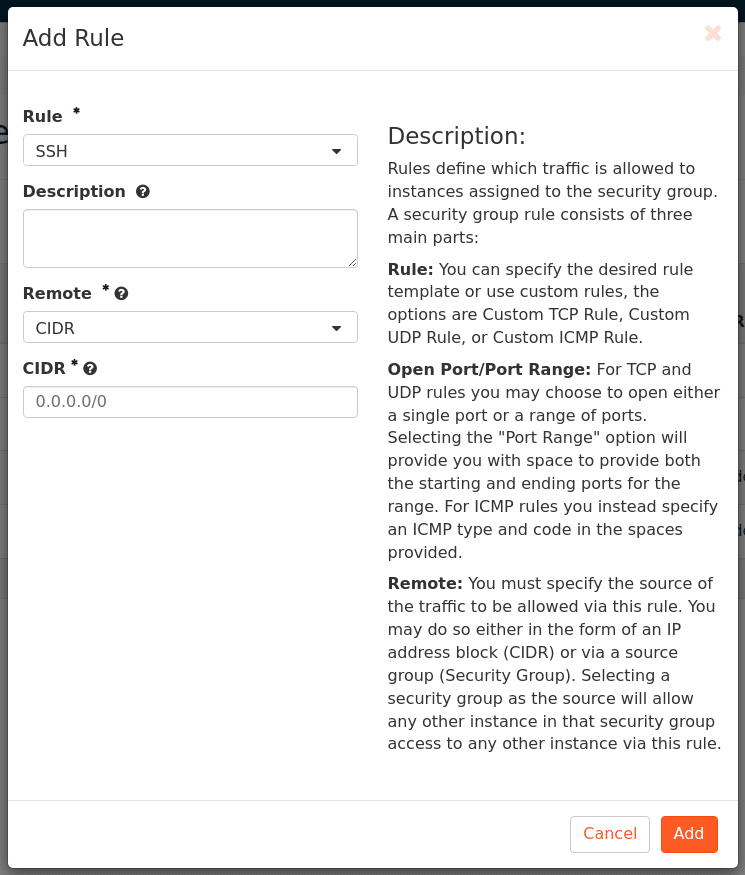
As all created machines already contain the “default” rule, access to the machine via SSH works from now on. In later articles, we will go into more detail about handling security groups and assigning them to machines, but that would go beyond the scope of this article.
In this tutorial, we will take a closer look at the security groups.
Connect to machine
If all steps have been carried out as described, you can now connect to the machine via SSH using a floating IP. For Ubuntu systems, connect as user ubuntu, for Debian as debian etc. For Windows machines, you can enter the password when starting the machine for the first time by clicking through the details in the instance overview of the machine.
Costs
Time is money – for us too! That’s why all machines and individually used resources are billed by the hour(prices here) at fair and transparent prices. So that you can keep an eye on everything, we have recorded the current costs incurred and the forecast for the current month (assuming constant usage) in our cost calculator.
Need more?
No problem. With a little patience, more and more articles will appear here. If you can’t wait or don’t want to bother, you can book a remote training course with us, watch our webinar or book our expert MyEngineers®.




0 Comments