

Today, more and more stateful applications are finding their way into production Kubernetes clusters. Therefore, it is likely that you are already using persistent volumes or persistent volume claims(PVs/PVCs) for the workloads you or your organization deploy. If you want to secure these applications thoroughly, you also need to take care of your data. A good first step is to use encrypted storage in Kubernetes. In this tutorial, we’ll show you how to set up encrypted storage in NETWAYS Managed Kubernetes clusters.
You can either follow this tutorial in your own NETWAYS Managed Kubernetes Cluster, or you can use our interactive playground – it’s completely free!
Prerequisites
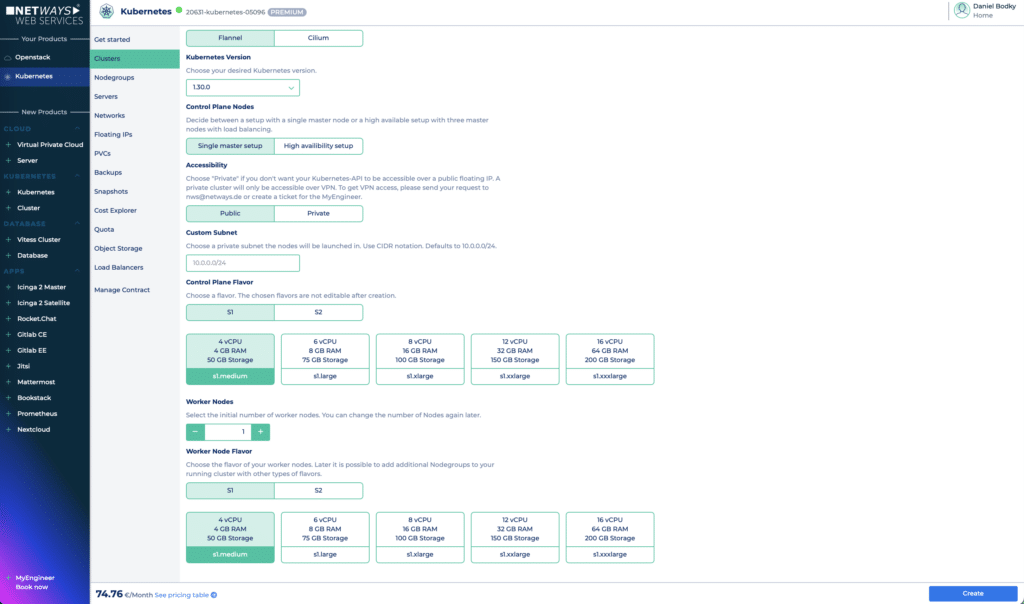
To try out the encrypted storage in Kubernetes clusters on MyNWS, you must first create a cluster. You can do this via the Kubernetes menu on the MyNWS dashboard. For this tutorial, the smallest possible configuration, consisting of a control plane node of size s1.medium and a worker node of the size s1.medium are sufficient. Make sure that your cluster is publicly accessible so that you can reach it via the Internet and click on Create.
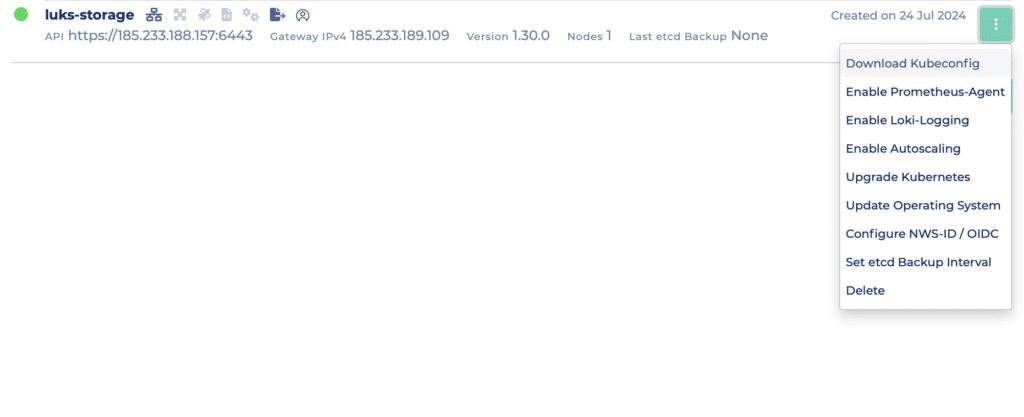
After a few minutes your cluster is ready. Download your kubeconfig as shown below (you can choose between an OIDC-based configuration or an admin configuration), and we can start exploring our storage options.
Check the available storage options
Once we have our kubeconfig file and can connect to our cluster, we can use the following command to display all StorageClasses that are available in our cluster:
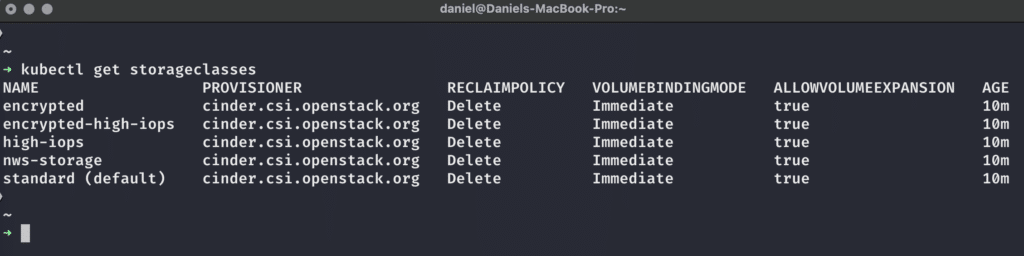
As we can see, all available StorageClasses related to Provisioner, ReclaimPolicy, VolumeBindingMode and AllowVolumeExpansion are configured in the same way – for more information on these topics please have a look at the official Kubernetes documentation. The most interesting part for us at the moment is the provisioner – it is cinder.csi.openstack.org for all StorageClasses. This means that behind the scenes, OpenStack handles the creation, management and deletion of the PersistentVolumes in our Kubernetes clusters for us. But what do these StorageClass names mean?
- standard is set as the default and provides an ext4-formatted OpenStack volume with an IOPS limit of 1000 IOPS and bursts of up to 2000 IOPS.
- nws-storage is similar to standard, but formats the OpenStack volume as xfs instead of ext4.
- high-iops is a faster variant of nws-storage, with an IOPS limit of 2000 IOPS and bursts of up to 4000IOPS.
- encrypted uses an OpenStack volume that provides transparent LUKS-encrypted storage with the IOPS limits of nws-storage.
- encrypted-high-iops combines the configurations of high-iops and encrypted
This standard setup is suitable for a wide range of application requirements: Applications that require a lot of slow and/or fast storage that does not contain sensitive data can use the default, nws-storage or high-iopsStorageClasses, while sensitive data can use LUKS-encrypted storage in Kubernetes with the encrypted(-high-iops)-StorageClasses. But how do you use them and how do they work?
Requests from encrypted storage in Kubernetes
Kubernetes provides us with a useful API for programmatically requesting storage of any kind from StorageClass – a PersistentVolumeClaim (PVC). You define it as an object for the Kubernetes API, e.g. via a YAML manifest, and Kubernetes and the external provisioners do the actual work. In our case, this means that the cinder.csi.openstack.org-Provisioner takes care of the following things when we request encrypted storage on NETWAYS Managed Kubernetes:
- Creation of the encryption key in the OpenStack key management system (KMS) Barbican.
- Creation of a LUKS-encrypted volume in OpenStack.
- Provision of the volume for our workloads in Kubernetes, already decrypted and ready for use!
Let’s take a look at this in action: Below is an example of a PVC manifest that we can apply to our cluster using kubectl apply -f <Datei>:
apiVersion: v1
kind: PersistentVolumeClaim
metadata:
  name: encrypted-claim
  namespace: default
spec:
  accessModes:
    - ReadWriteOnce
  resources:
    requests:
      storage: 8Gi
storageClassName: encryptedWe can check the PVC with kubectl get pvc -n default and see that a PVC has been created and bound to a PersistentVolume that corresponds to the actual encrypted storage provided to us by OpenStack:

Next, let’s see if we can use the volume within our workloads!
Access to encrypted storage in Kubernetes
As users of a managed Kubernetes offering, we probably don’t want to deal with the intricacies of key management systems (KMS), volume provisioners and the constant encryption and decryption of our volumes. We just want to use storage in our applications that run on Kubernetes.
So let’s see if OpenStack and NETWAYS Managed Kubernetes allow us to do just that by applying the following demo application to our cluster:
apiVersion: apps/v1
kind: Deployment
metadata:
  name: test-deployment
  namespace: default
spec:
  selector:
    matchLabels:
      app: nginx
  replicas: 1
  template:
    metadata:
      labels:
        app: nginx
    spec:
      containers:
        - name: nginx
          image: nginx:latest
          volumeMounts:
            - name: encrypted-storage
              mountPath: /data-encrypted
      volumes:
        - name: encrypted-storage
          persistentVolumeClaim:
claimName: encrypted-claimAfter we have applied this manifest with kubectl apply -f <Datei> to our cluster, we can check the status of the Deployments to see if the Pod was able to successfully mount the referenced, encrypted PersistentVolumeClaim:

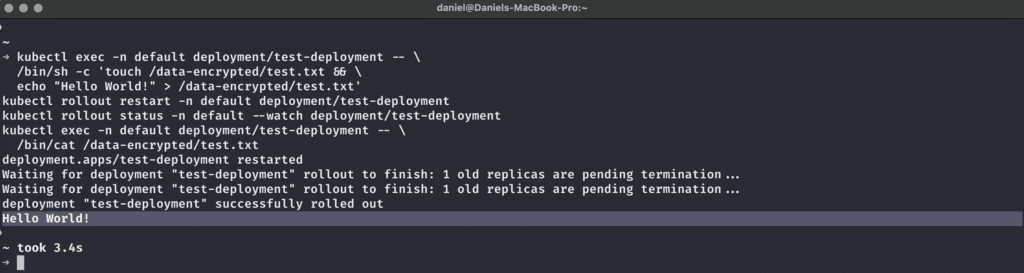
The final test is now to check whether we can read from and write to the supposedly encrypted volume from our NGINX pod. We can do this with this command sequence:
kubectl exec -n default deployment/test-deployment -- \
  /bin/sh -c 'touch /data-encrypted/test.txt && \
  echo "Hello World!" > /data-encrypted/test.txt'
kubectl rollout restart -n default deployment/test-deployment
kubectl rollout status -n default --watch deployment/test-deployment
kubectl exec -n default deployment/test-deployment -- \
/bin/cat /data-encrypted/test.txtThis sequence is…
- Create a file test.txt in our mounted encrypted volume within the pod and write
Hello World!to this file. - Restart the deployment so that we can ensure that the data has actually been persisted.
- Wait for the successful restart.
- Read out the contents of the file that we had previously created
And from the looks of it, it worked! We can actually use encrypted storage in Kubenetes with OpenStack’s LUKS-encrypted volumes, saving us the trouble of setting up encryption ourselves.
For more safety!
Although encrypted storage in Kubernetes, supported by OpenStack’s Encrypted Volumes feature, only provides encryption at rest, it’s still another (or first) step towards secure workloads.
The best part is that we don’t have to do anything manually: Just create a PVC pointing to an encrypted storage class, and OpenStack will do all the work to provide you with encrypted storage in Kubernetes.
If you have any further questions about the technical details of this process, don’t hesitate to get in touch with our MyEngineer® team! Of course, there’s more to cloud-native security than just encrypted data. That’s why you should definitely subscribe to our newsletter and keep an eye out for content on service meshes, policy engines and other security measures that we would like to explore with and for you in the future.




0 Comments