

Object Storage offers a number of technical features that can look complicated and seemingly superfluous when taken out of context. When combined, however, they become extremely handy for certain use‑cases – for example, immutable backups with S3.
In this hands‑on tutorial you’ll learn how to leverage multiple S3 features — Versioning, Object Locking, Retention, and Compliance Mode - to create immutable backups (unchangeable data snapshots) in object storage.
You’ll also get a set of best‑practice recommendations that give you extra protection for securing your backups.
When and Why Immutable Backups Make Sense
Immutable backups protect against accidental or malicious deletion during the retention period – even if credentials are compromised. In addition to deletion protection, they also prevent the data from being overwritten.
This is especially valuable when you have to satisfy regulatory mandates and prove that your backup storage adheres to the WORM principle (“write once, read many”).
Of course, backups aren’t meant to be kept forever in most cases. Typically you have to honor a specific retention period (e.g., 30 days), after which the backups may be deleted.
S3 Features at a Glance
Now we need to explain how S3 can be used to implement immutable backups. In the following sections you’ll discover exactly what the previously mentioned S3 features are and how they interrelate.
- Versioning
- Rather than overwriting an object, new versions are created.
- Older versions of the object are retained and can only be removed explicitly.
- If an object is deleted without specifying a version, only a Delete Marker is created.
- Object Lock
- Ensures that object versions cannot be deleted or overwritten up to a certain point in time.
- Can only be activated when creating a bucket.
- Cannot be deactivated later.
- Only takes effect if versioning is active. Without versioning, Object Lock has no effect.
- Only acts on objects if a retention or a “legal hold” has been set.
- Retention
- Consists of a period and a mode.
- The time period specifies how long objects cannot be deleted.
- Once set, the period can only be extended – not shortened.
- The mode determines whether certain exceptions should apply for deletion before the retention period expires.
- Compliance Mode
- A retention mode that does not allow exceptions for deleting or overwriting objects.
- Even users with admin authorizations cannot delete the objects before the retention period expires.
Recommendations
Before we start with the implementation, here are a few best practices for even better protection of your data.
- Isolation per workload
- Create a separate bucket for each team/application to clearly delineate authorizations and simplify subsequent audits.
- Implement Least Privilege
- Use separate user accounts with the most restricted authorizations possible for the respective purpose.
- Example: A user with write access for creating backups and a separate user with read-only access for restores.
- Encryption at rest
- Encrypt objects during upload via SSE-C.
- Before the upload, a secret is generated which is transferred in the S3 request for the upload or download in order to encrypt or decrypt the data.
Step by step to an immutable backup
In the following example, we create a bucket with object lock, versioning and a default retention of 30 days in compliance mode. If you only want to test the whole thing first, you can set the default retention of your bucket to one day.
We then upload a backup file and check whether we can delete it with one of our S3 users.
If you do not already have one, first set up an Object Storage project at MyNWS first.
To do this, log in to MyNWS and click on “+ Object Storage” in the left-hand navigation bar. Then confirm the project creation by clicking on “Create”.
Next, we create a user that we call “Backups”. After creation, we automatically receive an access key and a secret key for S3. We need to store these access data securely for later use (e.g. in a central password manager).
In accordance with best practice recommendations, we create two sub-users from the “Backups” user:
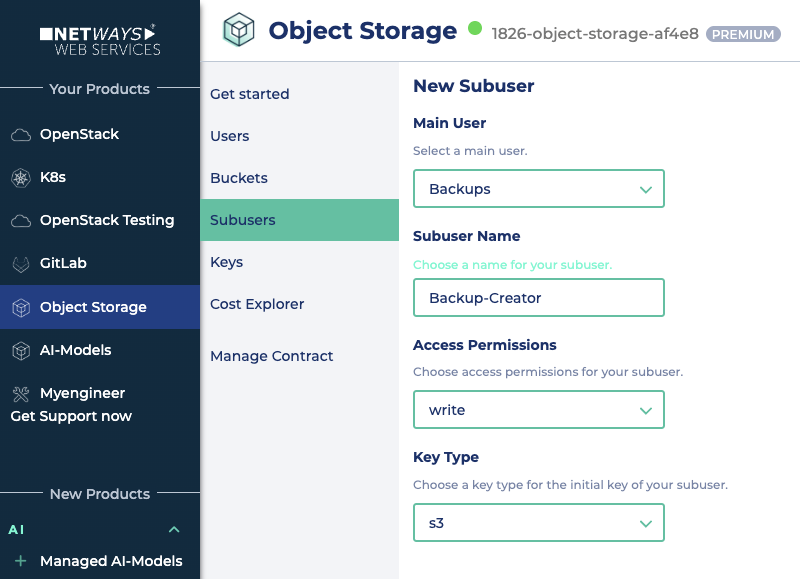
- The first subuser is called “Backup-Creator” and receives write access (
write). The key type remains “S3”. We should save the access data (access key and secret key) immediately.
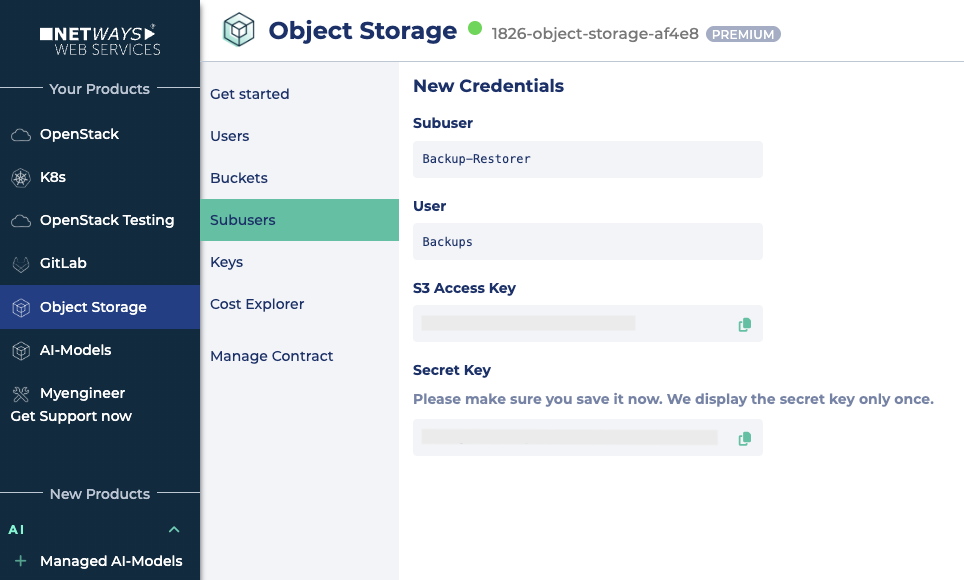
- The second subuser is called “Backup-Restorer” and only has read access (
read). Here, too, we set the key type to “S3” and back up the access data directly.
That is all that needs to be prepared in MyNWS. Continue on the command line.
Installing and setting up the CLI client
In this tutorial, we will use the MinIO client to set up immutable backups. There are of course other S3-compatible clients and SDKs that we could use, e.g. s3cmd.
We download the client (here for Linux) and prepare it for execution:
wget https://dl.min.io/client/mc/release/linux-amd64/mc
chmod +x mc
mv mc /usr/local/bin/After installing the MinIO client, three aliases are created.
The first alias is created with the access data of the main user (Backups).
mc alias set backups https://storage.netways.cloud <BACKUPS_ACCESS_KEY> <BACKUPS_SECRET_KEY> --api S3v4We will need the next alias later for the uploads of our backups.
mc alias set backup-creator https://storage.netways.cloud <CREATOR_ACCESS_KEY> <CREATOR_SECRET_KEY> --api S3v4We use the last alias later to restore our backups.
mc alias set backup-restorer https://storage.netways.cloud <RESTORER_ACCESS_KEY> <RESTORER_SECRET_KEY> --api S3v4For the time being, however, we only use the alias “backups” for the setup.
Step 1: Create bucket
Now we create a bucket with object lock and versioning. Since the names of buckets must be unique, we add a random number to the name.
BUCKET_NAME="backups-immut-testing-$RANDOM"
mc mb --with-lock --with-versioning backups/$BUCKET_NAMETo briefly check whether versioning is now active:
mc version info backups/$BUCKET_NAMEThe return should be similar to the following:
backups-setup/backups-immut-testing-18509 versioning is enabledStep 2: Set retention
Now we set the retention. New objects are then automatically protected for 30 days in compliance mode without the need for additional information when uploading.
mc retention set --default compliance 30d backups/$BUCKET_NAMEIn this case, the return is as follows:
Object locking 'COMPLIANCE' is configured for 30DAYS.Step 3: Upload
Now we use our “backup-creator” alias to upload a backup. In the example, I use a file called backup.tar.gz.
I also use server-side encryption (SSE-C, parameter --enc-c) to encrypt the file. We create the key (ENCRYPTION_KEY) for this in advance. We should of course save this key so that we can download the file again later.
TARGET_PATH="$BUCKET_NAME/backups/$(date --iso-8601)/backup.tar.gz"
ENCRYPTION_KEY=$(openssl rand -hex 32)
mc put --enc-c "backup-creator/$TARGET_PATH=$ENCRYPTION_KEY" ./backup.tar.gz backup-creator/$TARGET_PATHThe attempt to query the retention information after the upload with the same alias fails because the user used only has write permissions.
mc retention info backup-creator/$TARGET_PATH
Unable to get object retention on `backup-create/backups-immut-testing-18509/backups/2025-10-08/backup.tar.gz`: Access Denied.If we use the “backups” alias instead, we get the desired information.
mc retention info backups/$TARGET_PATH
Name : backups-setup/backups-immut-testing-18509/backups/2025-10-08/backup.tar.gz
Mode : COMPLIANCE, expiring in 29 daysStep 4: Deletion attempt
At this point, deletion attempts should still fail, regardless of which user we try.
Let’s first try it with the alias ‘backup-restorer’. As this only has read rights, we will fail due to a lack of write or delete rights.
mc rm --versions --force backup-restorer/$TARGET_PATHFeedback:
mc: <ERROR> Failed to remove `backup-restore` recursively. Access Denied.
We cannot delete with the alias ‘backup-creator’ either.
mc rm --versions --force backup-creator/$TARGET_PATHAnswer:
mc: <ERROR> Failed to remove `backup-create/backups-immut-testing-18509/backups/2025-10-08/backup.tar.gz` recursively. Access Denied.
And even our main user (alias ‘backups’) is currently unable to delete the backup.
mc rm --versions --force backups/$TARGET_PATHIssue:
mc: <ERROR> Failed to remove `backups` recursively. AccessDeniedStep 5: Test download
To confirm that the backup is still available, we list the versions of the object and then download the original version.
mc ls --versions backup-restorer/$TARGET_PATHMy edition:
[2025-10-08 11:27:50 UTC] 1.0GiB STANDARD 4sSduZoDnWRnF4qXf61AAY2OKQvgU5U v1 PUT backup.tar.gz
The long character string after the word “STANDARD” is the version ID. Copy this and then start the download.
I now use the alias “backup-restorer” for this and enter the ENCRYPTION_KEY for decryption.
mc get --enc-c "backup-restorer/$TARGET_PATH=$ENCRYPTION_KEY" \
--version-id 4sSduZoDnWRnF4qXf61AAY2OKQvgU5U backup-restorer/$TARGET_PATH /tmp/backup-download.tar.gzThe download of the file starts. The backup can therefore still be downloaded.
...-08/backup.tar.gz: 1.00 GiB / 1.00 GiB ┃▓▓▓▓▓▓▓▓▓▓▓▓▓▓▓▓▓▓▓▓▓▓▓▓▓▓▓▓▓▓▓▓▓▓▓▓▓▓▓▓▓▓▓▓▓▓▓▓▓▓▓┃ 10.09 MiB/s 1m41sThis brings us to our destination.
Easier than you thought: Immutable Backups with S3 Object Storage
S3 Object Lock provides a great basis for realizing immutable backups that protect against deletion and manipulation. Setting retention periods guarantees compliance-compliant storage. It is important to activate versioning and object lock when creating buckets.
As an outlook, lifecycle rules are a valuable means of automatically cleaning up old versions and delete markers after the retention period has expired. They help to save storage space and automate data management – without compromising protection during the retention period. You can find examples of how lifecycle rules can be created in our docs.




0 Comments