

Monitoring is a crucial component for many systems and indispensable for maintaining a good system status. Especially for critical systems, it is important to be informed about potential problems in a timely and efficient manner. Notifications about the status of your systems can be sent via Grafana Alerting, for example.
You may have noticed that we recently launched a Managed Prometheus App that combines Prometheus and Grafana. Prometheus is the leading open source monitoring solution that allows you to collect, aggregate, store and query metrics from various IT systems. Grafana complements this by providing intuitive data visualization through well-designed dashboards. However, to receive notifications from your systems, you need Grafana Alerting. Grafana Alerting supports notifications via email, SMS and many other channels.
In this guide, we will show you a simple and effective way to receive notifications from Grafana directly on your device by configuring Grafana Alerting with Telegram. The setup is quick and can be completed in just a few minutes.
How to set up Grafana Alerting with Telegram
Prerequisites
- Grafana (preferably the Managed Prometheus app)
- Telegram with your own account
Step 1: Create a Telegram bot and get the bot API token
First, make sure you have a Telegram account. Next, you will need two important pieces of information: the bot API token and your chat ID (the ID of the Telegram chat in which you want to receive notifications). This allows you to assign the bot to your chats and perform various actions.
Follow these steps to set up the Telegram bot:
- Open Telegram on your device.
- Search for the bot named BotFather.
- Enter
/helpin the chat to display all possible commands. - To get the Bot API token, create your own bot by entering
/newbot. - Follow the instructions (choose a name for the bot that ends with “bot” or “_bot”).
- Copy your HTTP API token.

Step 2: Retrieve the Telegram chat ID
After you have received the bot API token, add your bot to a group chat to receive the chat ID.
- Create a new group in the Telegram app.
- Search for the bot you have created and add it to the group.
- Interact with the bot by sending messages that begin with “
/“. - Send an HTTP request to the bot to retrieve the chat ID. Copy the following URL and replace
{dein_bot_api_token}with your bot API token:https://api.telegram.org/bot{dein_bot_api_token}/getUpdates - Call upthe URL in your browser.
- If the request is successful, you will receive a response in JSON format.
- Copy the value under “chat” at “id”.
Example task:
{"ok":true,"result":[{"update_id":301357744,"my_chat_member":{"chat":{"id":-4227950682,"title":...Step 3: Configure Grafana alerting with Telegram
The last step is to create a contact point for Telegram in Grafana Alerting and link it to a notification channel.
Create the contact point
Add a new contact point for Telegram in Grafana by following these steps:
- Navigate in the sidebar to Alerting > Contact points.
- Click on + Add contact point.
- Name the contact.
- Select Telegram under Integration.
- Enter your Telegram login details: Bot API tokenand chat ID.
- Click on Test to check whether the integration works. If this is not the case, make sure that your login information has been copied and pasted correctly.
- Click on Save contact point.
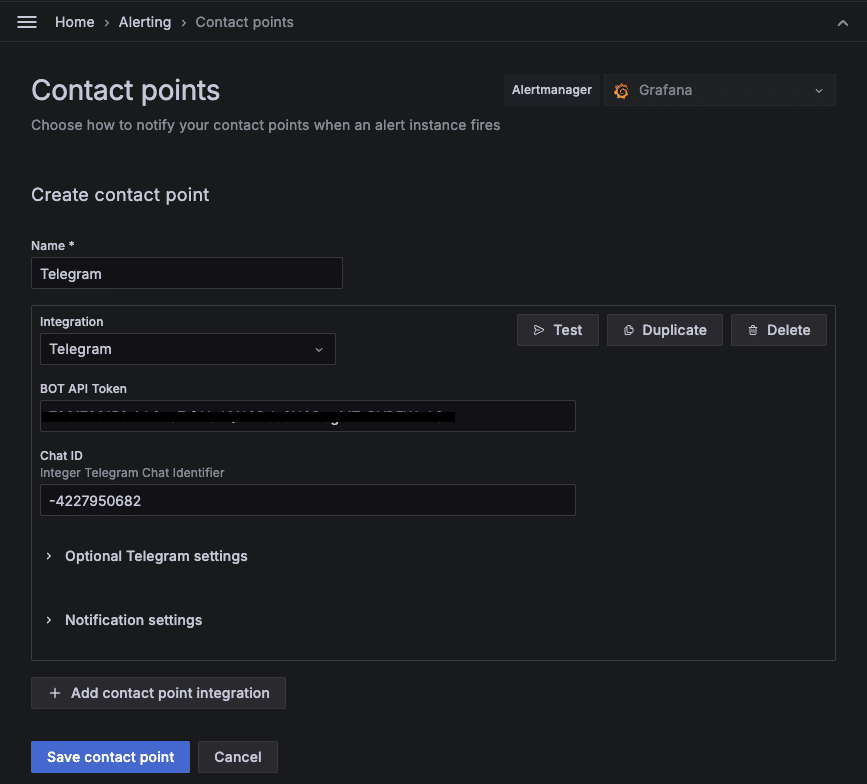
If the test was successful, it should look something like this:

That’s it already! You have successfully activated Grafana Alerting with Telegram. Have fun with Grafana Alerting!
If you have any further questions about our new NETWAYS Managed Prometheus App or the setup with Grafana Alerting, please do not hesitate to contact us or get in touch with our MyEngineer®.




0 Comments