


Conscientiously securing your IT landscape has become increasingly important in recent years. With a steady increase in (user) data that needs to be managed, processed and stored, encrypting this data should be on your agenda for a holistically secured IT infrastructure.
That’s why in this tutorial we’ll look at how LUKS encrypted storage on OpenStack can help secure your volumes at rest . We will look at two approaches to defining and using encrypted volumes in OpenStack: via the web interface and via the OpenStack CLI. We will start with the web interface.
Prerequisites
Solltest du OpenStack selbst verwalten und auf der Suche nach Konfigurationsanleitungen sein, schau doch einmal in die offizielle Dokumentation.
To reproduce this tutorial on NWS OpenStack, you need an NWS ID. You also need an OpenStack project in which you can create volumes and servers.
If you want to recreate the tutorial in your terminal , you also need to download the OpenStackRC file for your project.
If you need a refresher on how to do these things, take a quick look at our tutorial Start project and create the first server.
Configuration of LUKS encrypted storage in the dashboard
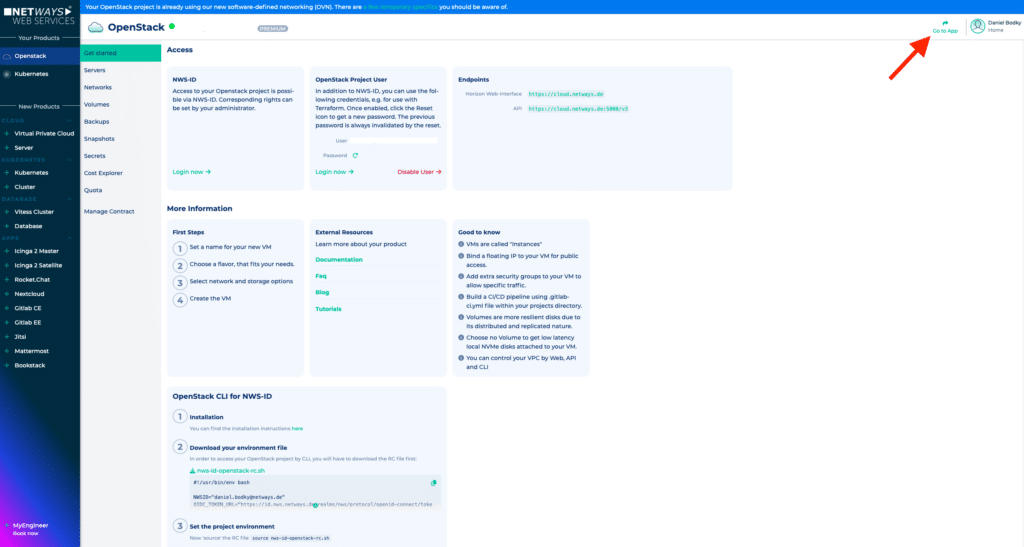
First, let’s take a look at how to deploy LUKS encrypted storage on OpenStack via Horizon, OpenStack’s web interface. If you are an NWS customer, you can either access Horizon via https://cloud.netways.de and log in with your NWS ID, or you can click on the “Go to App” button in the top right corner of your project overview on MyNWS.
Creating a new LUKS encrypted volume
Creating a new LUKS encrypted volume
Once you have arrived in the Horizon Dashboard, navigate to the volume overview of your project via Volumes > Volumes and click on Create Volume in the top right-hand corner. A configuration dialog opens in which you can specify the desired settings for the new volume:
- Volume Name – choose a meaningful name for your volume, e.g.
encryption-tutorial-volume - Description – add information about your volume, if desired
- Volume Source – choose between an empty volume and importing an existing image
- Type – the most important setting that determines, among other things, whether the volume is encrypted or not – more on this later
- Size – the desired size of the volume
- Availability Zone – where OpenStack should store the volume; in NWS OpenStack there is only one availability zone(nova)
- Group – add the volume to existing volume groups, if desired
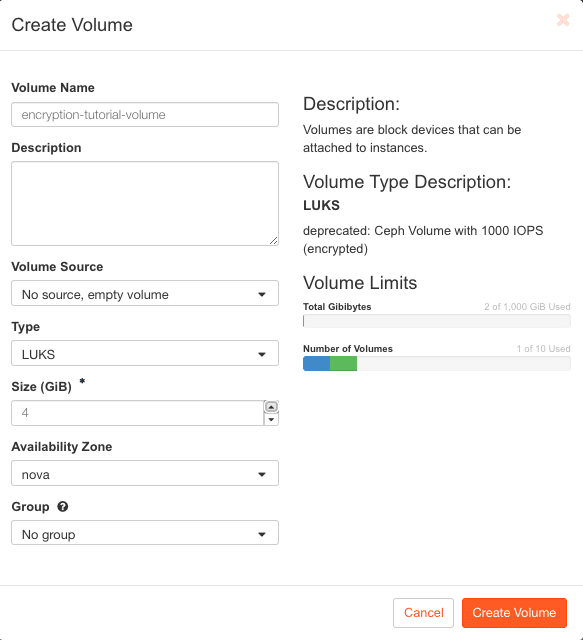
In the screenshot above, the volume is configured for the LUKS type, which is the volume type for LUKS encrypted storage on NWS OpenStack. I have also made sure that a new, empty volume is created and the size is set to 4GB .
If you recreate the tutorial on an OpenStack environment other than NWS OpenStack, the volume type may be named differently.
Once you are happy with the settings, you can click Create Volume and wait a few moments. In the meantime, OpenStack will create a new, LUKS-encrypted volume for you. In the next step, we can integrate the volume into a server.
Integration of LUKS encrypted volumes
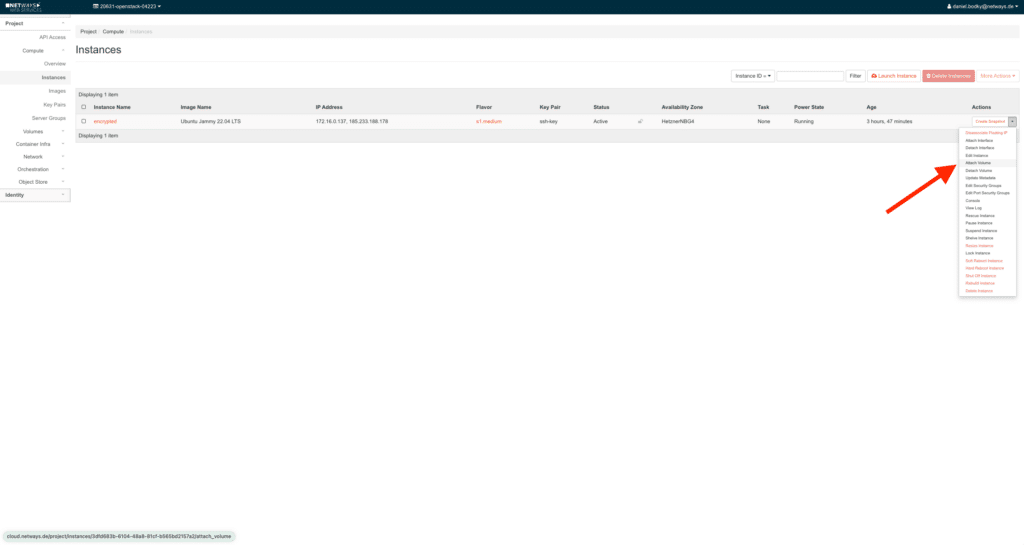
A volume alone won’t get you anywhere, whether encrypted or not – you need a client to use it. In this tutorial, we will create a new server in OpenStack for this purpose. This can be done either via the dashboard in MyNWS or by clicking on Launch Instance in Horizon under Compute > Instances.
Once the server is running, we can mount the encrypted volume in Horizon: Expand the drop-down menu in the Action column of the server overview, and select Attach Volume from the available actions.
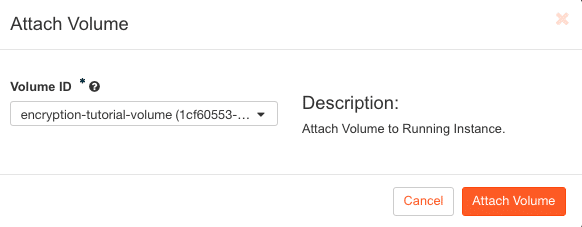
Another pop-up dialog opens and offers available volumes for mounting. Select the LUKS encrypted volume created in the previous step and confirm by clicking on Attach Volume:
That’s it – the encrypted volume is now mounted on the server. If you log in to your server (e.g. via SSH), you should be able to see a new storage device (probably /dev/sdb). You can use the new volume like any other, OpenStack has already decrypted it for you at this point.
At this point, please note once again: LUKS encrypted volumes back up your data at rest, but not in motion – this must be taken into account when evaluating your IT security!
Configuration of LUKS encrypted storage in the terminal
If you prefer the terminal and OpenStacks CLI to the web interface, there is of course the option to configure LUKS encrypted storage for OpenStack.
Download your OpenStackRC.sh file, source it, and select the OpenStack project you want to work on:
source ~/Downloads/nws-id-openstack-rc.sh

Testing authentication and fetching project list ...

Please select one of your OpenStack projects.

1) aaaaa-openstack-bbbbb
2) ccccc-openstack-ddddd
3) eeeee-openstack-fffff
4) ggggg-openstack-hhhhh
5) iiiii-openstack-jjjjj
6) kkkkk-openstack-lllll
7) mmmmm-openstack-nnnnn
8) ooooo-openstack-ppppp
Enter a number: 1
Selected project: aaaaa-openstack-bbbbbOnce you have selected one of your projects, you can create an encrypted volume next.
Creating a new LUKS encrypted volume
First you need to identify the storage type of your OpenStack project that supports LUKS encrypted storage. You can display a list of all available storage types with the following command:
openstack volume type list
+--------------------------------------+--------------------------+-----------+
| ID                                   | Name                     | Is Public |
+--------------------------------------+--------------------------+-----------+
| 2f487bd6-628d-46ba-83c5-21c6dbb4c67d | Ceph-Encrypted           | True      |
| e0704085-2e47-4e3d-b637-ae04e78f5000 | Ceph-Encrypted-High-IOPS | True      |
| 21b793e6-8adf-4c92-9bf9-14f5a7b6161a | LUKS                     | True      |
| 664b6e93-0677-4e11-8cf1-4938237b6ce2 | __DEFAULT__              | True      |
| 0a65e62f-3aad-4c6d-b175-96dedaa7ba1f | Ceph-High-IOPS           | True      |
| c4a685b0-64c4-4565-9b4c-9800056d659d | Ceph                     | True      |
+--------------------------------------+--------------------------+-----------+In NWS OpenStack, the storage type responsible for LUKS encryption is conveniently called LUKS.
Next, you can now create a new volume and reference the desired storage type:
openstack volume create --type LUKS --size 4 encryption-tutorial-volume
+---------------------+------------------------------------------------------------------+
| Field               | Value                                                            |
+---------------------+------------------------------------------------------------------+
| attachments         | []                                                               |
| availability_zone   | nova                                                             |
| bootable            | false                                                            |
| consistencygroup_id | None                                                             |
| created_at          | 2024-03-04T12:41:29.000000                                       |
| description         | None                                                             |
| encrypted           | True                                                             |
| id                  | 9b20a1d8-bfb6-4e4f-bb4b-dbda62e4afc7                             |
| multiattach         | False                                                            |
| name                | encryption-tutorial-volume                                       |
| properties          |                                                                  |
| replication_status  | None                                                             |
| size                | 4                                                                |
| snapshot_id         | None                                                             |
| source_volid        | None                                                             |
| status              | creating                                                         |
| type                | LUKS                                                             |
| updated_at          | None                                                             |
| user_id             | acfef1ea27ec3ac25fa5009238cdeb2cc5ae2c943da7ecb279c43a5a91b8a4bf |
+---------------------+------------------------------------------------------------------+In the example above, I have created a volume called encryption-tutorial-volume with a size of 4GB .
Next, you need to mount the created volume on a server.
Integration of LUKS Encrypted Volumes
To be able to integrate the volume, you need a server to which you can connect it. So create a new server in your OpenStack project with the following command, or use the MyNWS or Horizon Dashboard for this:
openstack server create --flavor s1.small --image "Debian 10" \
--network public-network test-serverThis command works by default in every NWS OpenStack project – if you recreate this tutorial on a different OpenStack environment, you may need to adjust the references to Flavor, Image and Network.
Once the server has been started, you can connect the volume to the server as follows:
openstack server add volume --device /dev/sdb test-server encryption-tutorial-volume
+-----------------------+--------------------------------------+
| Field                 | Value                                |
+-----------------------+--------------------------------------+
| ID                    | 9b20a1d8-bfb6-4e4f-bb4b-dbda62e4afc7 |
| Server ID             | 7952e17d-0781-41c3-a1e9-b758574ac336 |
| Volume ID             | 9b20a1d8-bfb6-4e4f-bb4b-dbda62e4afc7 |
| Device                | /dev/sdb                             |
| Tag                   | None                                 |
| Delete On Termination | False                                |
+-----------------------+--------------------------------------+If you now log into your server (e.g. via SSH), you will see the new storage device as /dev/sdb. You can now work with it directly as with any other volume: formatting, mounting and use work immediately – OpenStack has already decrypted the block storage in the background.
Let us summarize
OpenStack provides everything needed to encrypt your volumes at rest. You can create, encrypt and connect block storage volumes either via OpenStack’s Horizon Dashboard or via its CLI without having to adjust the configuration of your servers.
The feature hardly causes any additional costs (OpenStack stores the LUKS encryption key as a secret in Barbican, OpenStack’s Key Manager – resulting in low fixed costs per secret) and is a “quick win” for securing your IT infrastructure.




0 Comments