


Once you have clicked on the first new instance in our cloud web interface and assigned an SSH public key with which you want to connect to this VM, you are faced with the small problem that you cannot access the instance from outside; we have the “default” security group to thank for this.

It contains the rules:
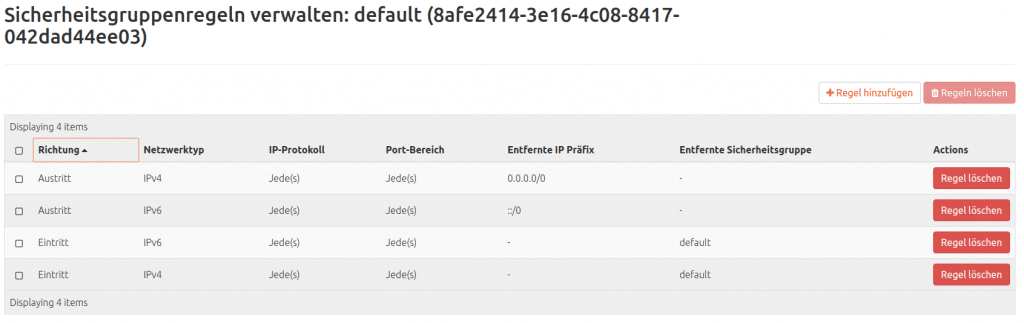
– Allow incoming connections with any protocol, on any port, but only from hosts in the internal network that also use the “default” security group (IPv4 and IPv6)
– Allow outgoing connections with any protocol, on any port and to anywhere (IPv4 and IPv6)
This ensures that the new VM is protected. Anyone connecting from outside can only really get through the access opening that has been provided and created for this purpose. There are two ways to create a security group: a new security group can be created and provided with a rule or a rule can be added to the default security group. The second option has the disadvantage that the rule to be entered will be applied to all new instances with the default security group in future, which will not always make sense on all VMs.
Create a new cloud security group
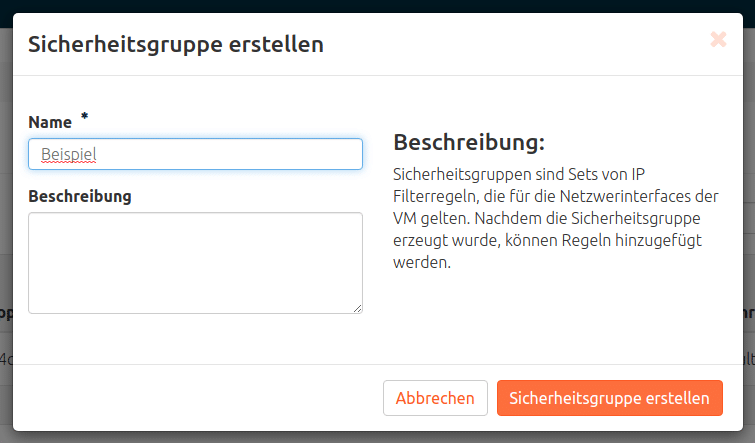
Click: Network > Security groups > “+ Create security group”.
A dialog box appears in which a name must be entered (and optionally a description can be entered). Here I call the new group “Example”, but any other name that follows its own grouping strategies, for example, will do. Then create a security group.
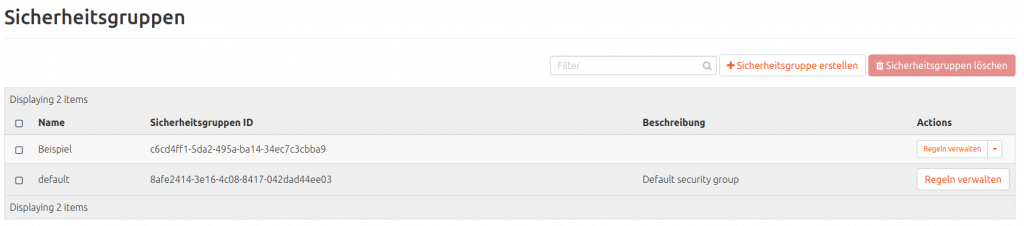
Then appears in the list:
Add SSH accessibility from external as a rule of a security group
Go to: Network > Security groups > Manage rules (for the security group to be edited).
In a new, as yet unprocessed security group, you will only find one exit rule each (IPv4 and IPv6). Continue with: “+ Add rule”. In the drop-down menu Rule, select the sub-item SSH and “Add”.
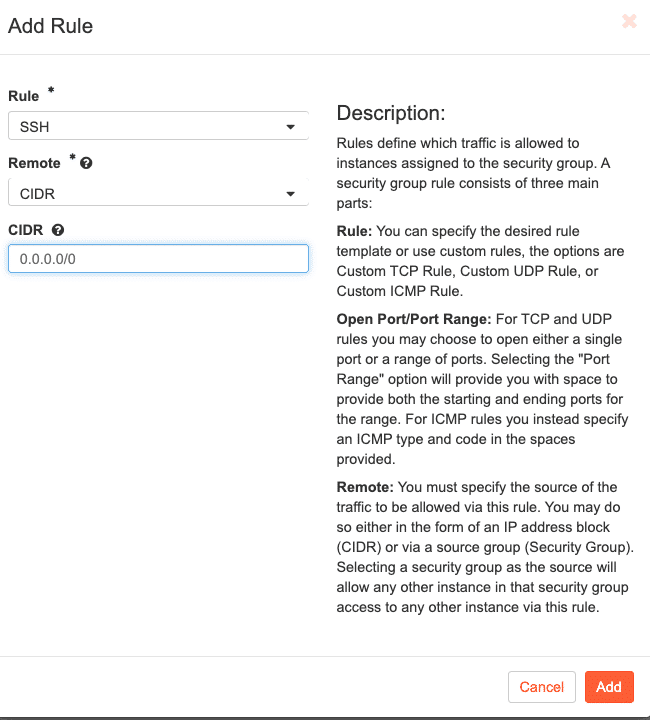
– If a security group already assigned to the VM (e.g. default) has been provided with this rule, the rule is applied immediately and the VM can be contacted via the CLI.
– If a rule has been created in a new security group that has not yet been assigned to the VM:
Assign a new security group to the VM
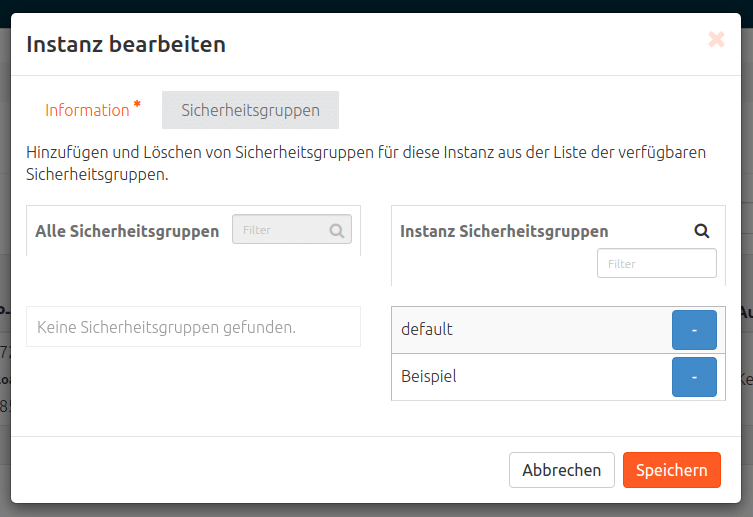
Navigate: Compute > Instances > Drop-down arrow (to the far right of the instance to be modified) > Edit security groups. The new security group can be found under “All security groups”, add the new security group to the “Instance security groups” with the white-on-blue plus and “Save”.
Create ICMP accessibility from external as a rule
Network > Security groups > Manage rules (for the security group to be edited) > “+ Add rule ” > Rule = “All ICMP” > Add.
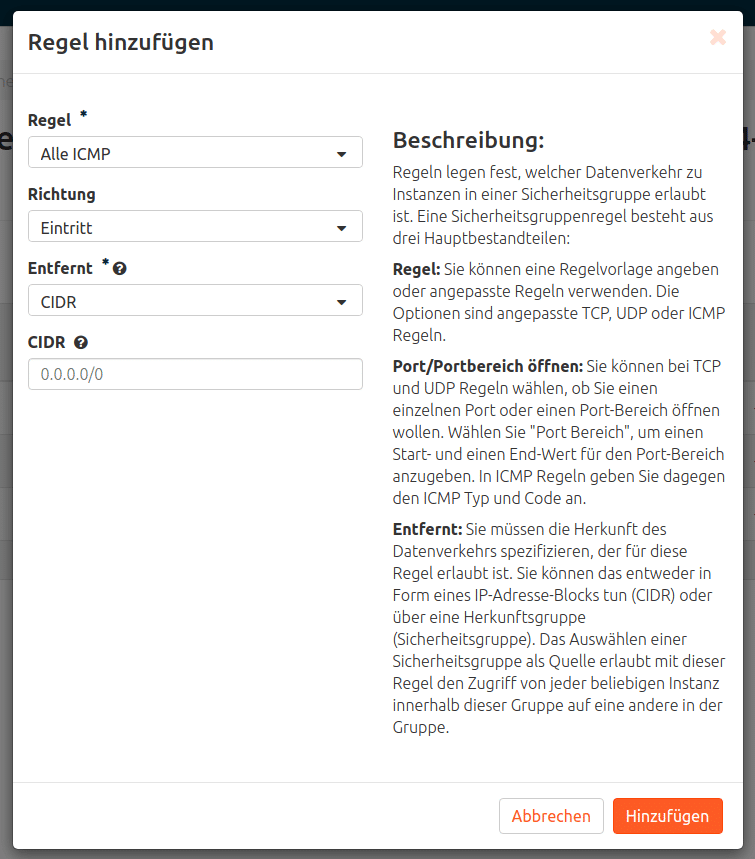
A rule for HTTP / HTTPS or the following, for example, works in the same way
Rule example with more chicanes
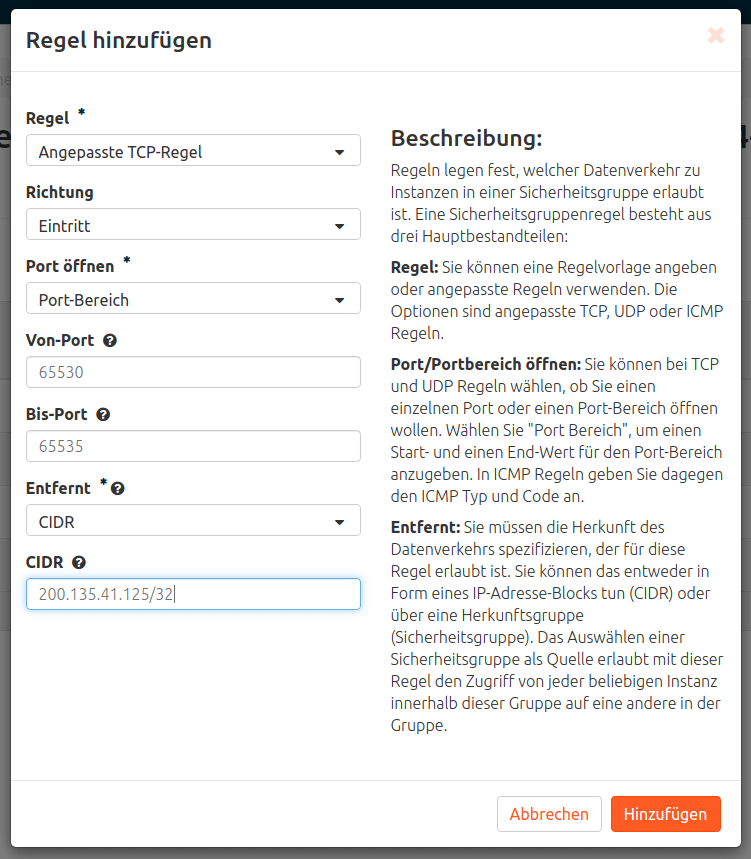
External accessibility with TCP in the port range 65530-65535 only from IP 200.135.41.125
Network > Security groups > Manage rules (for the security group that is to be edited) > “+ Add rule” > Rule = “Customized TCP rule > Open port = port range >
“From port” = 65530 > “To port” = 65535 > CIDR = 200.135.41.125/32 > “Add”
For anyone who finds setting up and configuring new VMs too extensive or difficult, MyEngineer® will be happy to create any desired setup.
The first project can be started in our NWS cloud.




0 Comments